Download Sweetcoin App ( Instant Payment Approval)
⚠️ Important Instructions: Please Read Carefully Before Starting
This task is only for new Sweatcoin users who have never created a Sweatcoin account before. If you already have a Sweatcoin account, please do not participate.
To ensure your registration is completed correctly and my referral is tracked properly, follow each step below carefully.
✅ Steps to Complete the Task
Step 1: Click the Referral Link
Click the referral link below:
🔗 https://swcapp.com/i/omoteshorashidat
Step 2: Accept the Invitation
- Accept the invitation through my referral link if prompted.
- Make sure you accept the invitation before downloading the app, if instructed.
Step 3: Download the Sweatcoin App
- Download the official Sweatcoin app from the Google Play Store.
- Wait for the installation to finish.
- Open the app.
Step 4: Sign Up with Google
- Click “Sign up with Google” if the option appears.
- Select your Google account.
- Provide the information required to complete registration.
Step 5: Allow the Required Permissions
- Grant the necessary Activity or Physical Activity permission.
- If a required permission is disabled, go to your phone’s Settings and enable it as instructed by the app.
Step 6: Complete Your Registration
- Follow the app’s instructions to finish setting up your account.
- Enable Activity Tracking as instructed by the app.
Step 7: Walk for at Least 1 Minute
🚶 After completing your registration, walk normally for at least 1 minute so Sweatcoin can record your steps.
- Your step count must be greater than zero (0).
- Do not submit a screenshot while your step count is still zero (0).
- Make sure Sweatcoin has successfully recorded your steps.
Step 8: Upload Your Screenshot Proof
📸 Screenshot Proof Required
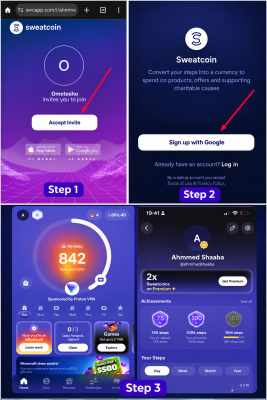
Screenshot 1: Submit a screenshot showing that you clicked the “Accept Invite” button through my referral link.
Screenshot 2: Submit a screenshot showing the “Sign up with Google” page or successful registration.
Screenshot 3: Submit a screenshot of your Sweatcoin Step Count or Activity page showing a step count greater than 0 after completing registration.
Then follow these instructions:
- Visit https://imgbb.com/
- Upload your screenshot.
- After the upload is complete, copy the image link provided by ImgBB.
- Return to the task submission page.
- Copy and paste the image link into the proof submission field for confirmation.